monstershopmonstershop.co.uk
Instructions by monstershopMAXBLAST Gutter Vacuum Camera
monstershop

MAXBLAST Gutter Vacuum Camera

MAXBLAST Gutter Vacuum Camera
Before you start
Safety Advice GPSR Information Parts
Steps
1. Getting Started 2. Power On/Off3. Mode Switching4. Exiting Settings Mode5. Video Recording 6. Photo Mode7. Slow Motion Mode8. Data Transfer9. Wi-Fi Setup & Use 10. Maintenance11. Troubleshooting

No results

monstershop
monstershop / MAXBLAST Gutter Vacuum Camera
MAXBLAST Gutter Vacuum Camera
monstershop

Instructions by

monstershop

MAXBLAST Gutter Vacuum Camera

Instructions for assembling, installing, and using the MAXBLAST Gutter Vacuum Camera. It includes safety advice, operational guidelines, and maintenance tips.

Product Information

MAXBLAST Gutter Vacuum Camera

Introducing the Gutter Vacuum Camera – a practical visual aid designed to enhance gutter cleaning efficiency and accuracy. This camera attaches securely to the top of your gutter vacuum system, providing a live view of the cleaning process directly to your mobile phone. Supplied with both camera and phone attachments, the setup allows you to mount your phone conveniently at the base of the pole while the camera monitors the action from above, ensuring clear visibility and more precise results without the need for ladders.
SKU
215801
215801
Screen Resolution2MP
Frame Rate30 fps
Camera Resolution4K
Waterproof (with case)30M
Charging MethodType-C Port
Battery/Capacity/Life3.7v rechargeable battery, 1350 mAh battery , 90-120 minutes
Loop Recording2min / 3min / 5min
Dimensions59x41x54mm
Weight60g
Screen2 inch front screen + 1.3 inch back screen
Zoom Capability1x up to 4x
Wireless Transmission Range50m+
Wireless Type WiFi
Operating Temperature Range-20° to +60°
Pole Compatibility Range Max 5.5cm
SD Card64GB SD Card (max)

Safety Advice

Ensure you have read and fully understood the instruction manual and safety advice before using this product.

  • Before each use, visually inspect all components—including the camera, waterproof case, phone holder, camera attachment, and both pole attachments—for signs of damage, looseness, or wear; do not use the product if any component is compromised.
  • Ensure the camera, phone holder, and all attachments are securely fastened to the pole before lifting or operating the system; loose fittings can result in components falling and causing injury or damage.
  • Always ensure the waterproof case is fully sealed before use to prevent moisture ingress and potential short-circuiting of the camera; in wet weather, take additional care to protect your mobile device if it does not have waterproof features or casing.
  • Maintain a safe working distance of at least 10 metres from all overhead power lines to eliminate the risk of electrocution.
  • Conduct a site survey before operation to identify electrical hazards, unstable surfaces, or other environmental risks.
  • Avoid using the product near pedestrians or passers-by unless safety barriers or warning signage are in place to prevent injury from falling equipment.
  • Limit continuous screen viewing to reduce the risk of eye strain or disorientation; take regular breaks and adjust phone brightness according to ambient light conditions.
  • When attaching or removing the camera, ensure it is done at a safe and manageable height to avoid strains or falls.
  • Follow safe manual handling practices when lifting or positioning the pole; if the setup requires reaching above shoulder height or over obstacles, use a second person to assist.
  • Do not use the pole or attachments for any purpose other than those specified in the instruction manual.
  • Ensure the pole is stable and securely supported when in use; do not overextend or use on uneven ground without proper stabilisation.
  • Store all components in a clean, dry environment to prevent corrosion or material degradation.
  • Perform regular inspections of all pole attachments, camera fittings, and waterproof seals to ensure long-term safety and integrity.
  • If WiFi connection fails during operation, lower the pole carefully before attempting to re-establish the link or inspect the device.
  • Do not attempt to repair or modify the camera system or attachments; always use manufacturer-approved parts and follow approved procedures.
  • Dispose of electronic components in accordance with local environmental regulations.

GPSR Information

UK

  • Manufacturer: Monster Group UK Limited, Monster House 19-23 Alan Farnaby Way, Industrial Estate Sheriff Hutton, York YO60 6PG, England.
  • Person Responsible: Rana Harvey, Monster Group UK Limited, Monster House 19-23 Alan Farnaby Way, Industrial Estate Sheriff Hutton, York YO60 6PG, England. +441347878880

EU

  • Manufacturer: Monster Group BV, Van Heemskerckweg 28A & B, Venlo 5928LL Netherlands.
  • Person Responsible: Rana Harvey, Monster Group BV, Van Heemskerckweg 28A & B, Venlo 5928LL, Netherlands. +441347878880

Parts

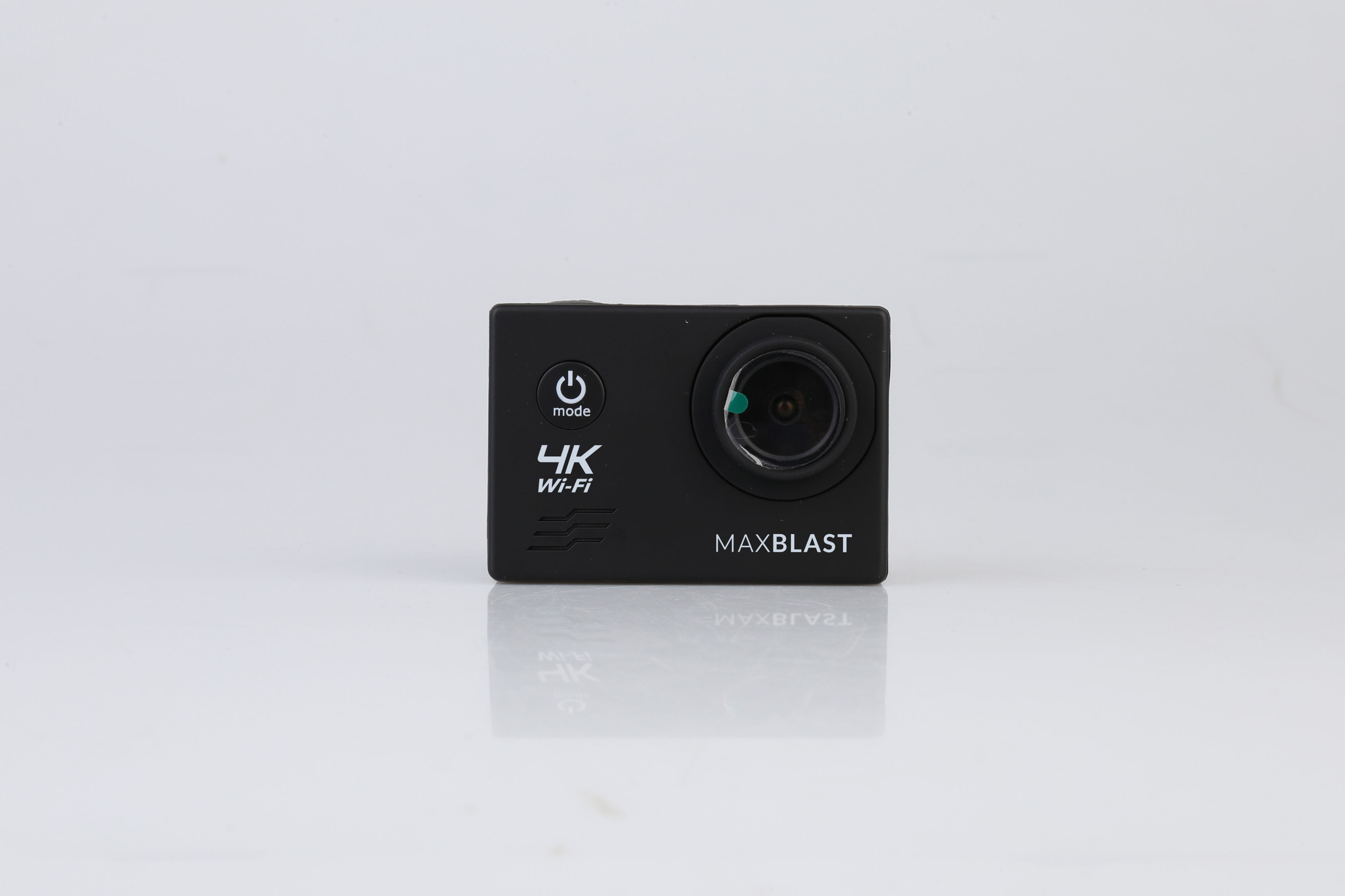
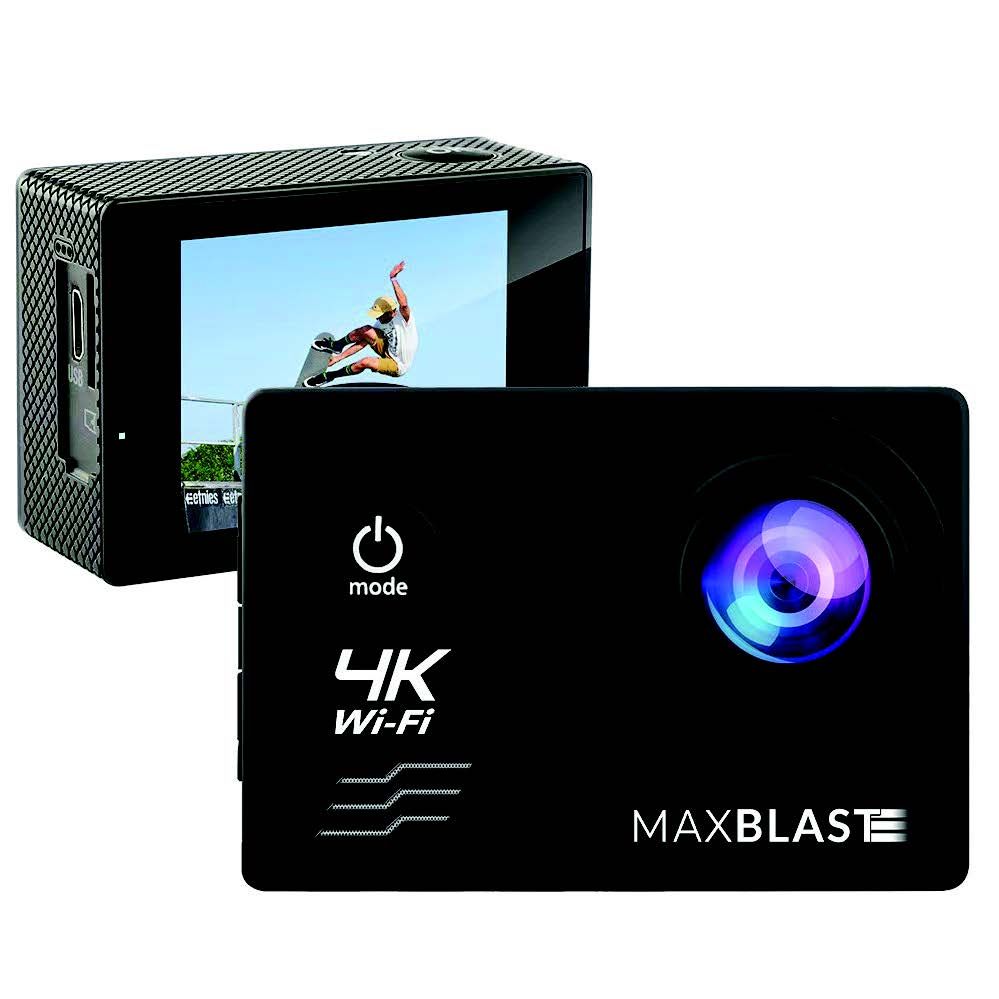
Camera
Camera
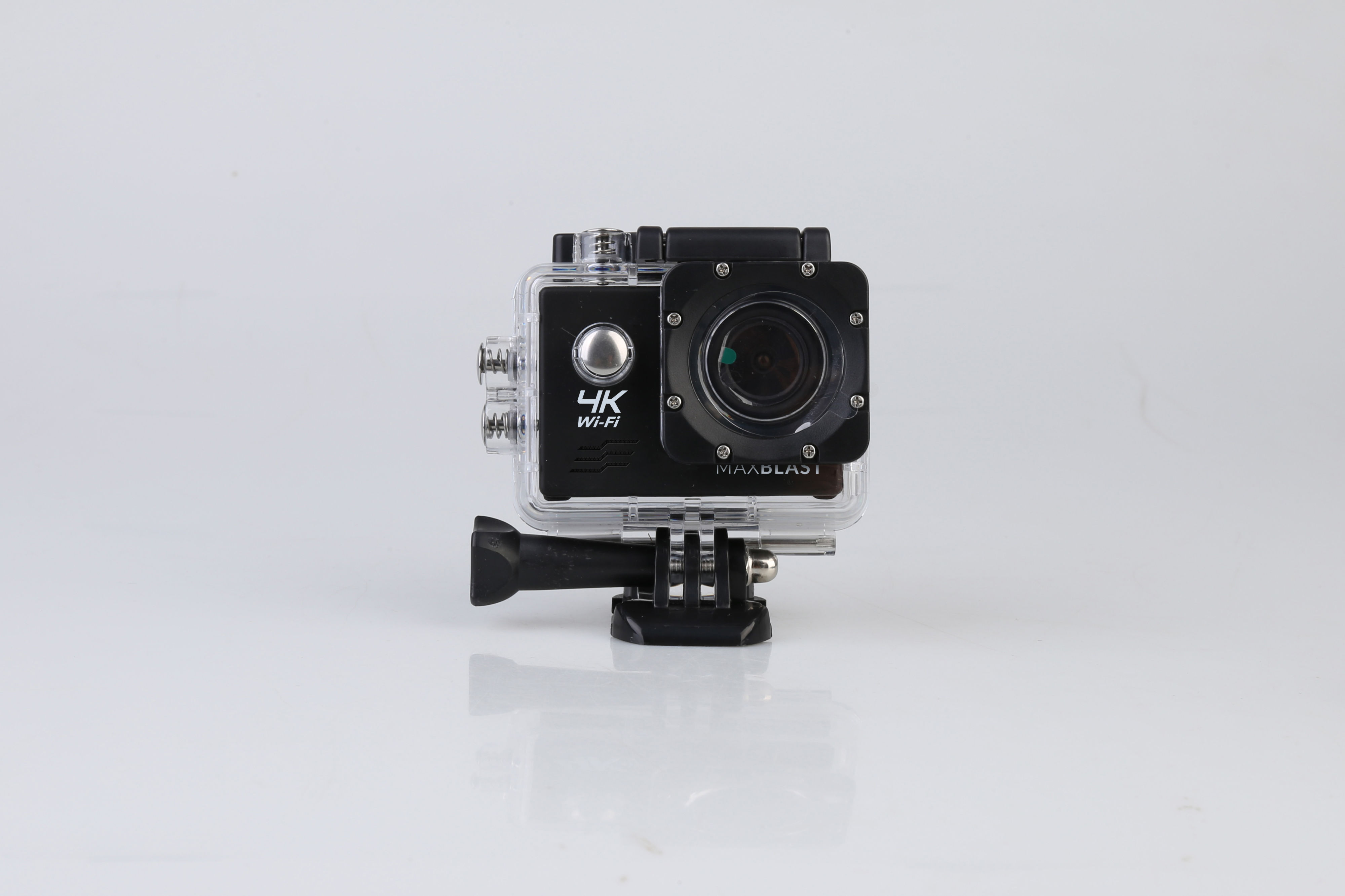
Waterproof Case
Waterproof Case
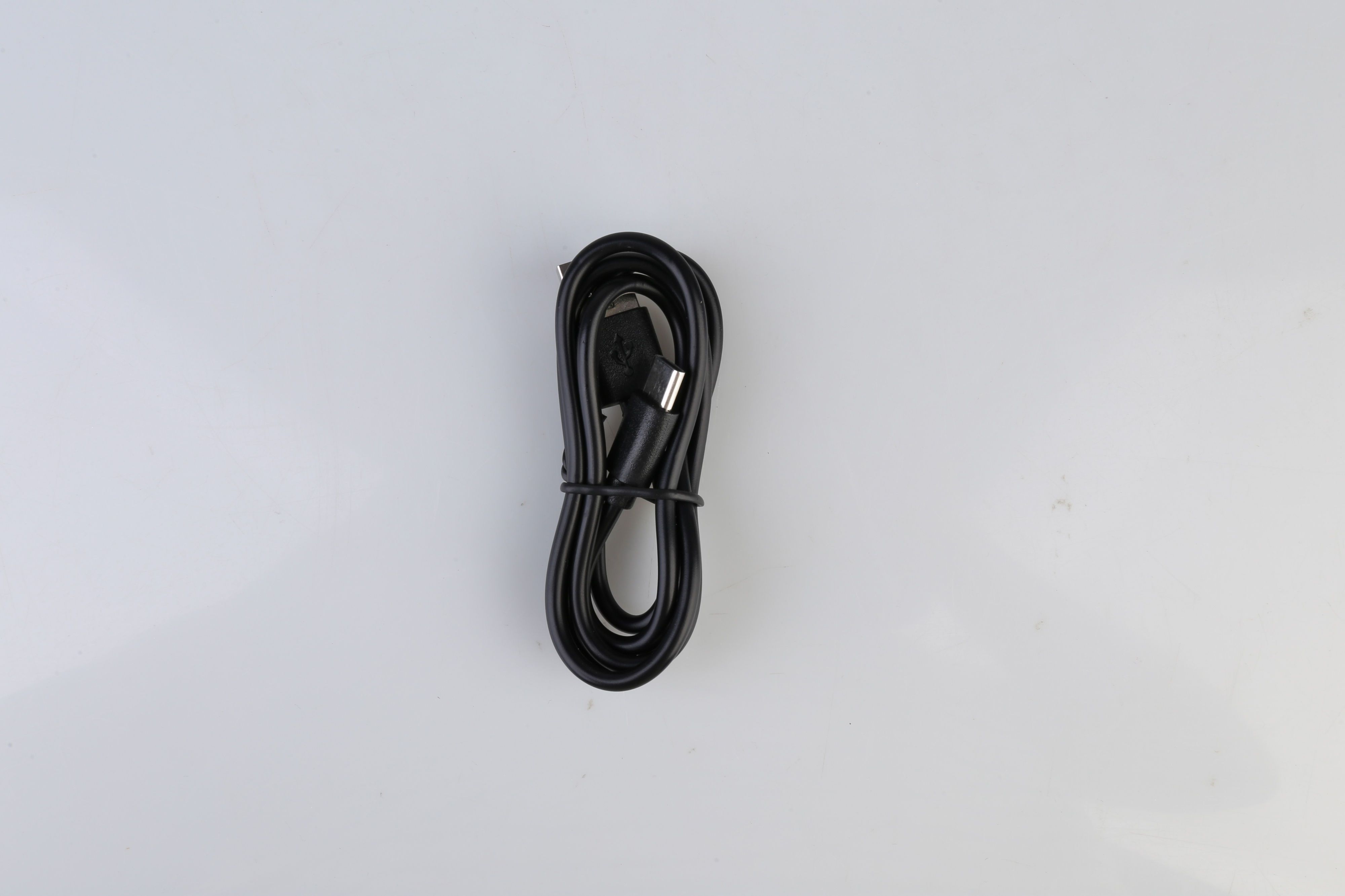
USB-C Cable
USB-C Cable
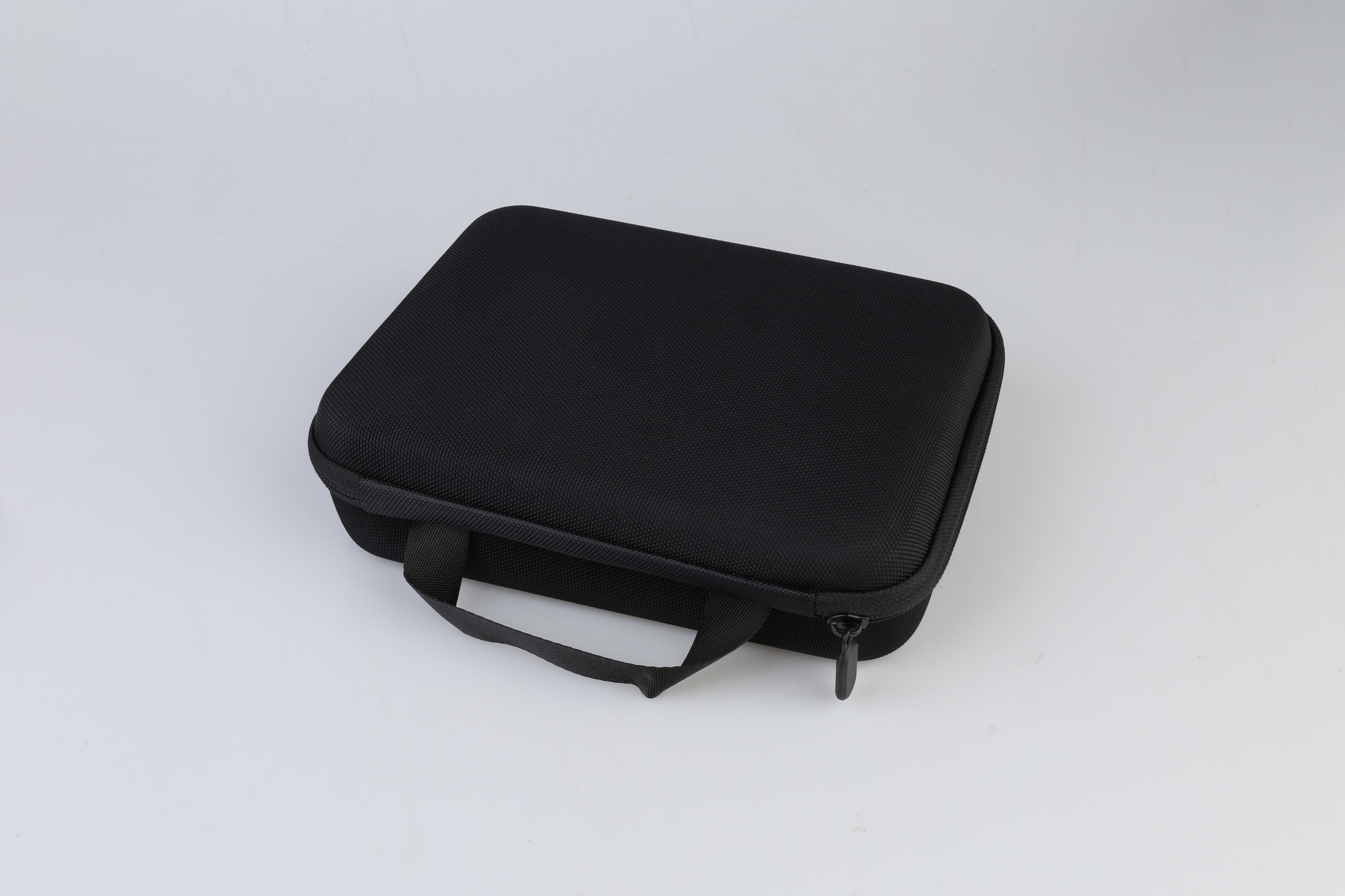
Carry Bag
Carry Bag
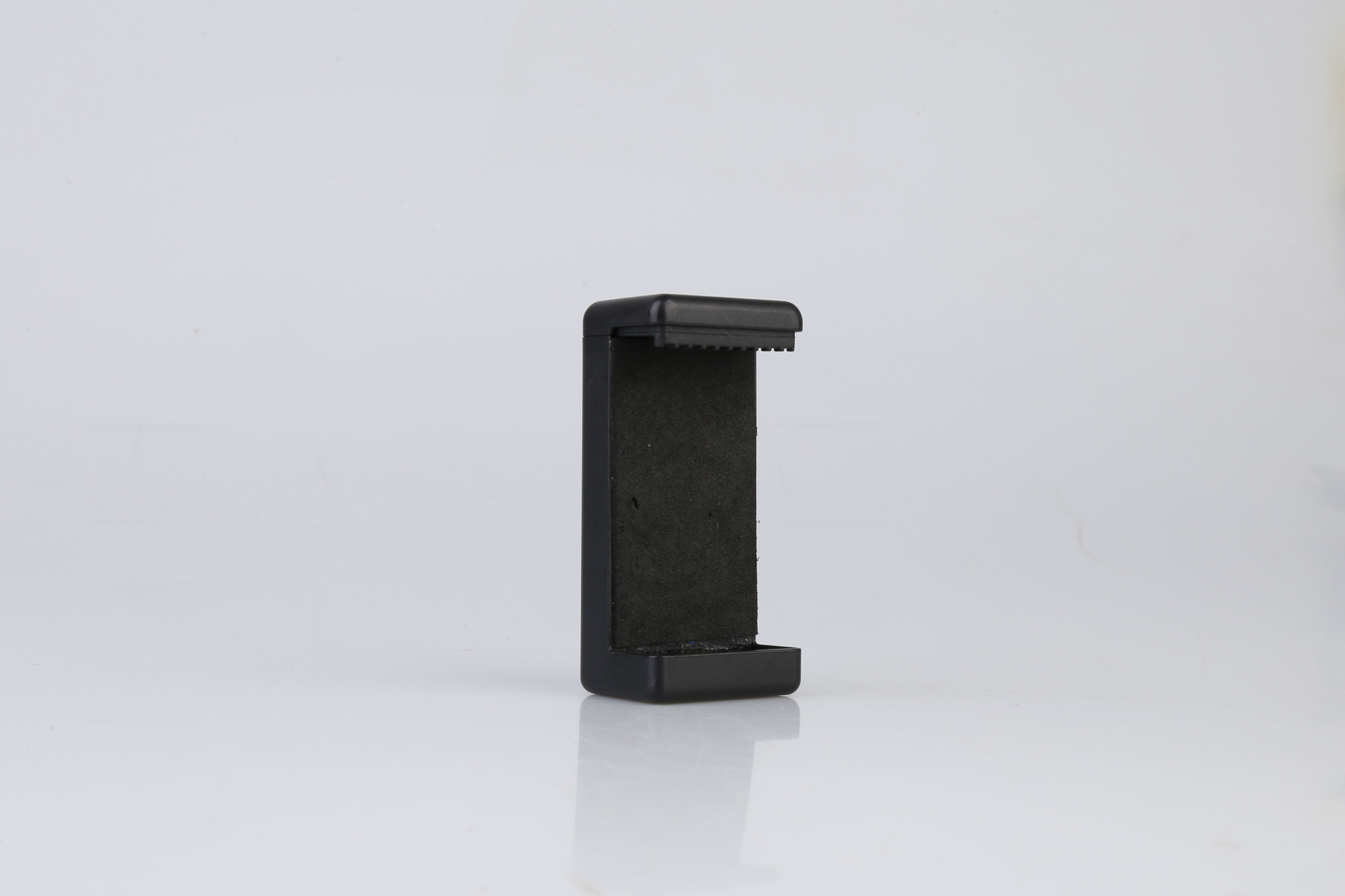
Phone Mount
Phone Mount
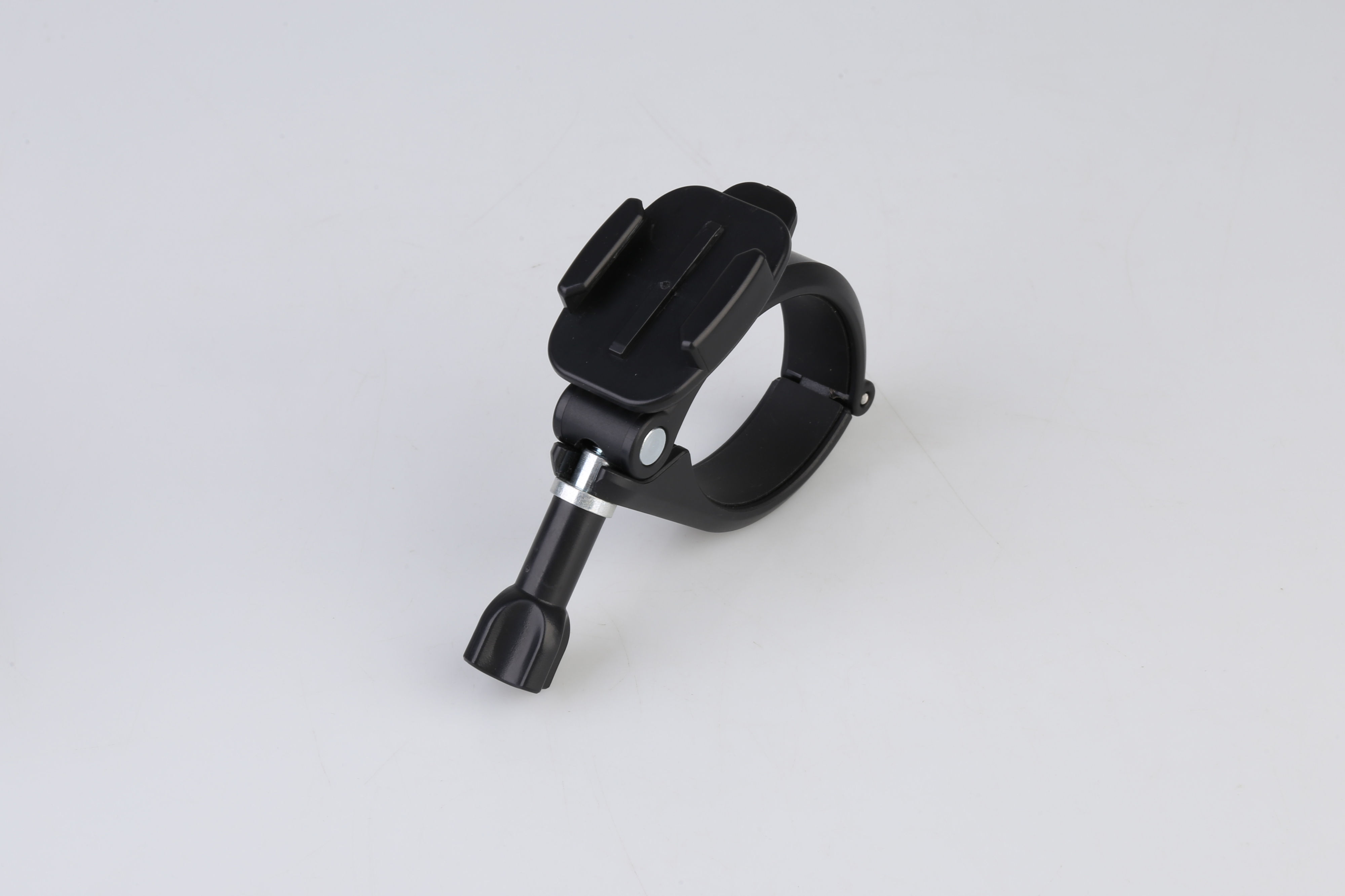
Pole Mount
Pole Mount
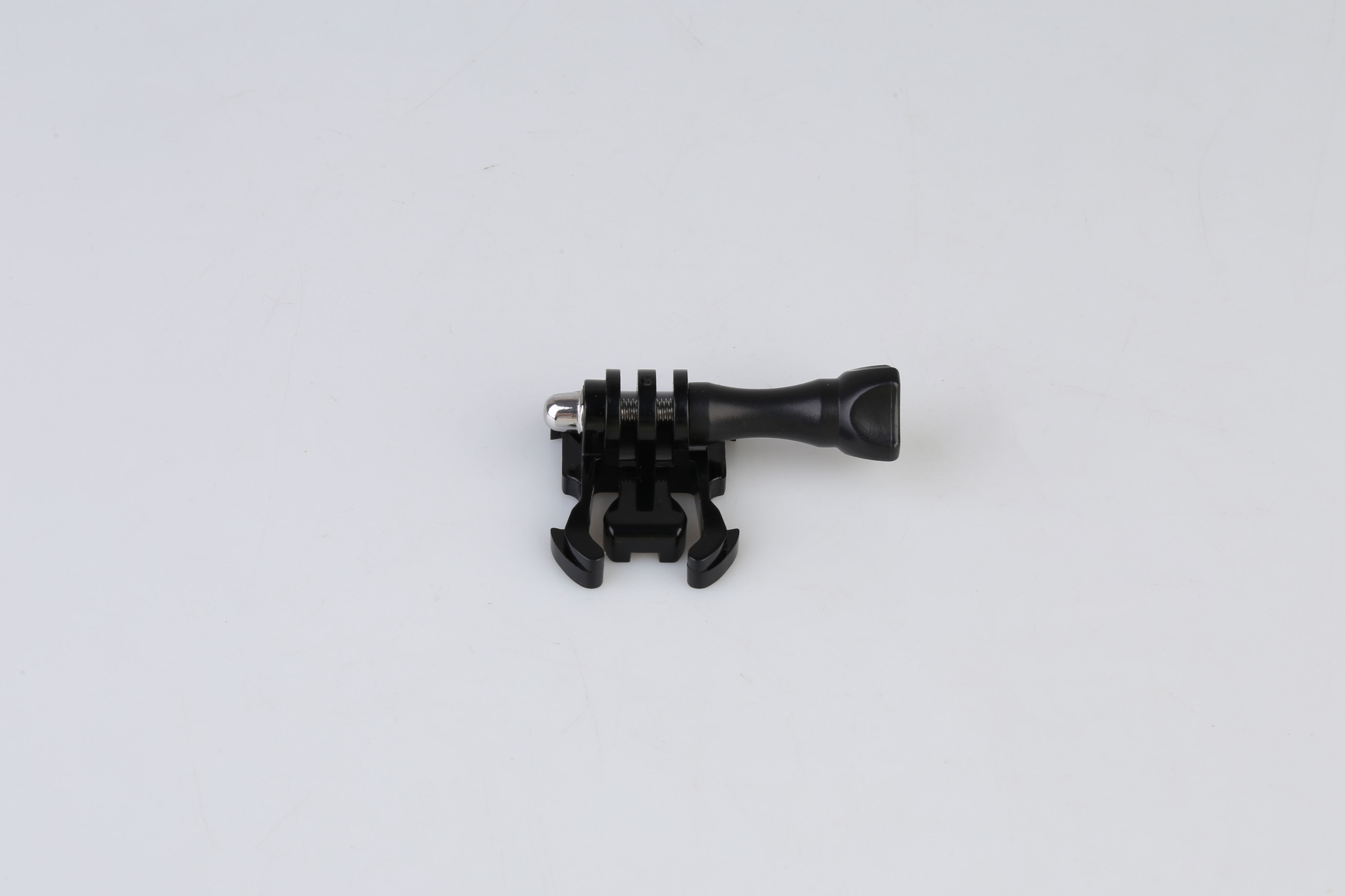
Camera Mount
Camera Mount
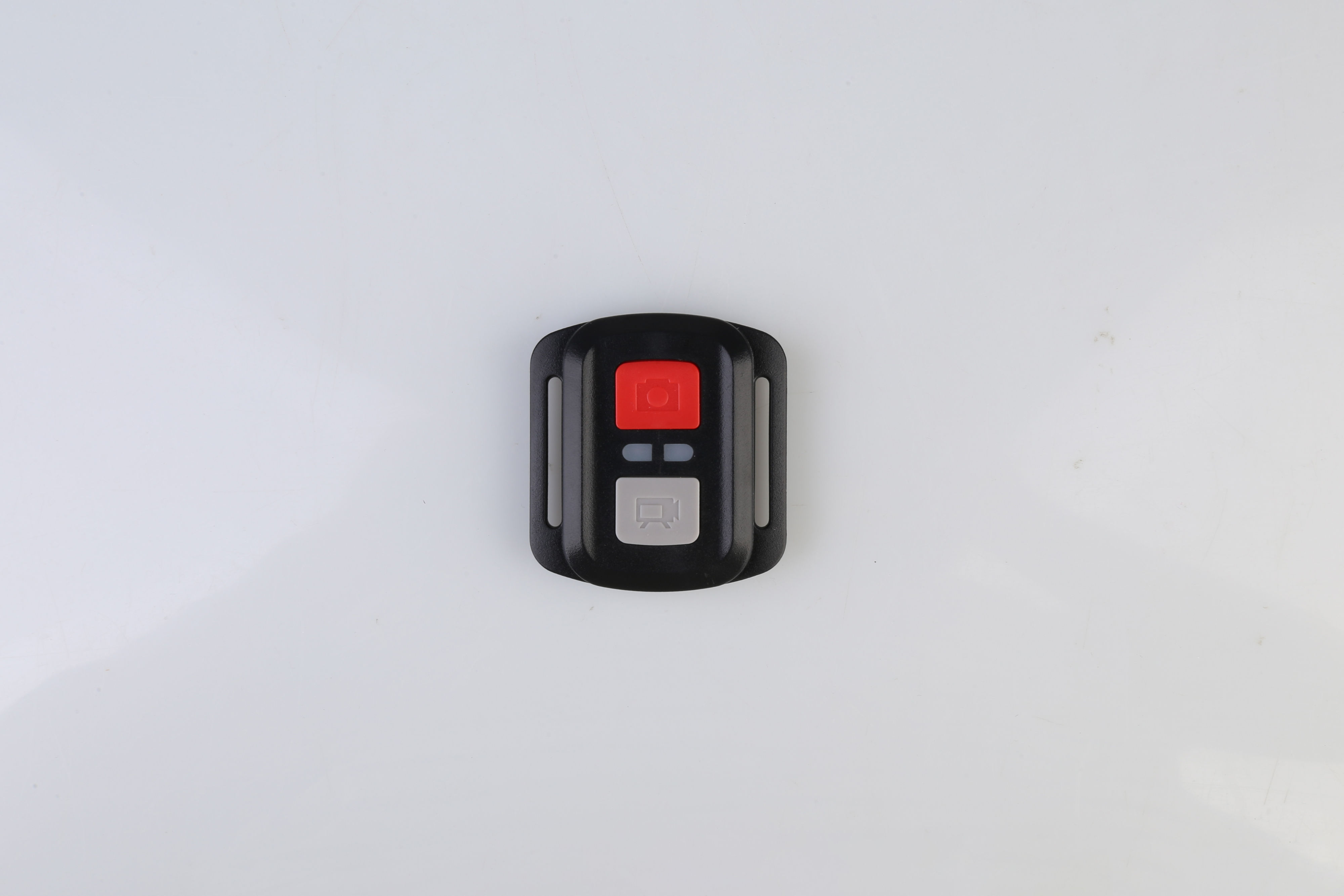
Wireless Remote
Wireless Remote

1. Getting Started

1. Insert MicroSD Card (for this 4K action camera , it support the Max 64GB SD card, other high-capacity memory cards are not supported.)
2. Charge Battery via USB cable connected to a PC or power adapter.

  • You can record while charging.
  • Use a 5V 1-2A power source (charger, power bank, or car adapter).

2. Power On/Off

  • Power On/Off: Press and hold the Mode/Power button for 3-5 seconds to turn the camera on or off.

3. Mode Switching

After powering on, short-press the Power/Mode button to cycle through modes:

  • Video → Photo → Slow Motion → Playback → Settings.

4. Exiting Settings Mode

  • When finished in Settings Mode, select  "Exit Settings (X)" and press the OK button to return to Video Mode.

5. Video Recording

  • Available recording modes: Normal Recording / Loop Recording / Time-Lapse
  • To start recording: press the OK button while in Video Mode (indicator light blinks).
  • To stop recording: press OK button again (indicator light turns off).

6. Photo Mode

  • Photo options include: Normal Shooting / Self-Timer / Auto Capture / Motion Trail Capture
  • In Photo Mode, a camera icon appears in the top-left corner.
  • Press the OK button to take a photo.

7. Slow Motion Mode

  • Available resolutions:

* 1080P @ 60fps

* 720P @ 120fps

  • In Slow Motion Mode, a slow-motion icon appears in the top-left corner.
  • Press OK button to start recording (indicator blinks); press again to stop.

8. Data Transfer

  • Connect the action camera to a PC via USB cable, or
  • Remove the MicroSD card and use an SD card reader.
  • This allows you to export photos and videos.

9. Wi-Fi Setup & Use

1. Install the XDV App on your smartphone:

* Android: Download from Google Play

* iOS: Download from the App Store

* Requires Android 4.1+ or iOS 7.0+
2. Turn the camera on. Press the 'UP' key. A Wi-Fi message will appear, and the Wi-Fi indicator will flash.
3. On your phone, open Wi-Fi settings, find and connect to "sport-camera".

* Default password: 1234567890
4. Open the XDV App. Through the app you can:

* Preview the live camera view

* Start/stop video recording

* Take photos remotely

* Play back, download, delete, or share files

10. Maintenance

  • Clean the Camera Lens and Waterproof Case Regularly\

After each use, wipe the camera lens and the inside and outside of the waterproof case with a clean, dry, non-abrasive cloth to remove dust, watermarks, or debris. Avoid using chemicals or abrasive cleaners.

  • Inspect and Clean Attachment Points\

Check all connection points (camera mount, phone holder, pole attachments) for dirt, corrosion, or wear. Clean these areas gently and ensure no debris interferes with locking mechanisms.

  • Check for Cracks or Wear on the Waterproof Case Seal\

Examine the rubber seal or gasket around the waterproof case for any cracking, brittleness, or deformation. Replace the seal if damaged to maintain water resistance.

  • Monitor Wi-Fi Signal and Battery Health\

Ensure the Wi-Fi connection is reliable during use. If you notice frequent disconnections or reduced range, check the battery level and recharge fully. If the battery no longer holds charge, replace it.

  • Inspect Pole Attachments\

Before each use, test the pole attachments for tightness and stability. Ensure locking mechanisms hold securely. Tighten screws or clamps if needed.

  • Test Camera Function Before Use\

Power on the camera and connect it to the mobile device via WiFi before extending the pole. Confirm that the video feed is stable and responsive. Resolve any connection issues before working at height.

  • Store Components Properly \

Store the camera, waterproof case, phone holder, and attachments in a dry, dust-free environment, ideally in a padded or protective case. Avoid high humidity, direct sunlight , and heat sources.

  • Perform a Monthly System Check\

Once a month, fully assemble the system to check for wear, loose parts, or functional issues. Use this time to clean all components thoroughly and confirm proper operation.

  • Keep Software Updated\

Regularly check your mobile app for updates via your phone's app store. Updates improve compatibility, security, and features.

  • Use Manufacturer-Approved Parts Only \

If any component is damaged or worn, do not attempt to repair or replace it with non-original parts. Please contact us for approved replacement parts.

11. Troubleshooting

  • WHAT DO I DO IF THERE ARE MISSING PARTS FROM MY ORDER?

If there appears to be any part missing from your order, contact our friendly and helpful Customer Support Team within 7 days of receipt.

  • FOR ALL OTHER ISSUES, PLEASE CONTACT OUR CUSTOMER SUPPORT TEAM.
monstershop
monstershop (opens in new tab)Terms (opens in new tab)Privacy (opens in new tab)